Check your tax zonesUpdated 5 months ago
Purple Dot will charge Sales Tax at checkout, where applicable. You will receive the sales tax in your payouts and run your sales tax remittance processes as normal.
Head over to the Settings tab on the left-hand side of your dashboard and click Taxes
You can choose to set them up manually or you can add your Avalara details.
Helpful hint: If you are not seeing a dropdown to complete the tax zones, please make sure you have set up your shipping rates first.
Set up manual tax zones
Any country/state where you charge taxes should be listed here.
Once you add the relevant countries/states, by default, we will calculate the tax at checkout for the customer. However, you can also override our rate to set your own.
Purple Dot will then collect the correct taxes, transfer them to you when you fulfill the items and you will remit them as normal.
Click the Add tax zone button and it will bring up a window where you can select the Country and/or State, the method (Calculated at checkout, flat rate, calculated by Avalara, calculated by EAS), as well as if you will include the tax in the prices.
Only the countries, provinces that you ship to will appear in this list.
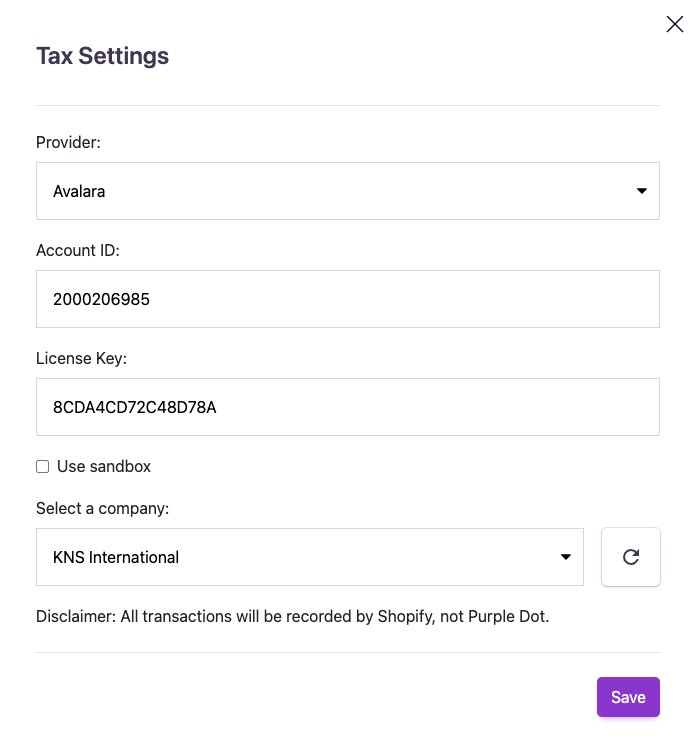
Connect your Avalara
Click the Settings button within your Taxes settings and it will bring up a window where you can select Avalara and enter your Account ID and Licence Key. Select your company name and then test your connection.
You are good to go!