
Setting up your shipping ratesUpdated 5 months ago
Head over to the Settings tab on the left-hand side of your dashboard and click Shipping.
You can decide what shipping rates you want to use for your pre-order waitlists. Once you import them from Shopify, you can either leave them as-is and charge the same shipping rate as your in-stock items or set a new rate in the case of a pre-order.
Set your standard shipping rate provider
Click edit next to shipping rate provider and you can import your shipping rates from your Shopify store or configure manual shipping rates to be used.
Once imported, you can view the rates here:
Add pre-order override rates
You can add set manual override rates for your pre-orders if you wish to charge less or make all pre-orders ship free (this is the most popular choice!)
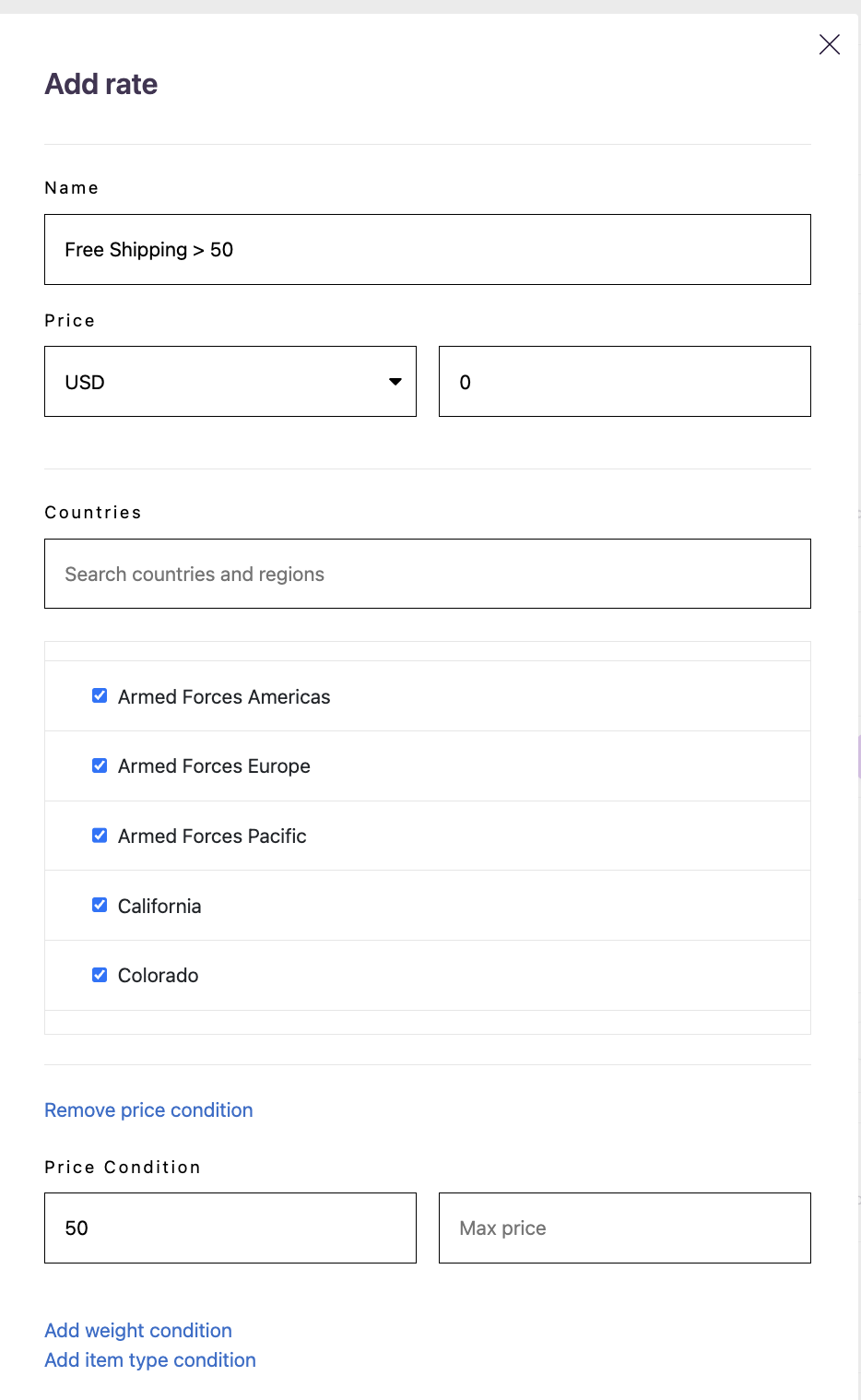
Click the Add rate button and it will bring up a window where you can name the rate, add the price, select the required countries and you can also add a price condition (for eg. Free shipping over $50)
If you don't set an override rate then rates for pre-orders will be taken from the providers configured above. Shoppers will be charged the cheapest applicable rate for their pre-order.