
How do I bulk upload waitlists?Updated 4 months ago
Bulk uploading lets you create multiple Waitlists at once using an existing file — such as a purchase order — or a simple spreadsheet with product details.
It’s the fastest way to put lots of products live for pre-order, without having to add them one-by-one.
1. Prepare your file
You can upload:
- Purchase orders (PDF, Excel, or even images are accepted)
- Spreadsheets (XLSX or CSV files)
Our AI model automatically extracts products, SKUs, quantities and dates from your document.
You can upload an existing purchase order and let our AI do the heavy-lifting, or you can upload a spreadsheet using the format below:
Column | Example | Description |
|---|---|---|
Product Name | Purple Socks | The product name as listed in your store |
Variant SKU code | Socks_001 | The unique SKU for each variant, as used in your store |
Quantity | 25 | Number of units you want to add to the Waitlist |
Earliest Ship Date | Jan 10 2026 | The earliest estimated shipping date |
Latest Ship Date | Jan 20 2026 | The latest estimated shipping date |
💡 Tip: If you don’t have unique SKU codes for each variant in your store, try adding extra columns with the variant information (e.g. size or colour) to improve the matching accuracy
💡 Tip: Keep your shipping dates in separate columns — this helps our AI match them accurately.
2. Upload your file
- Click Create Waitlists
- Choose Create in bulk
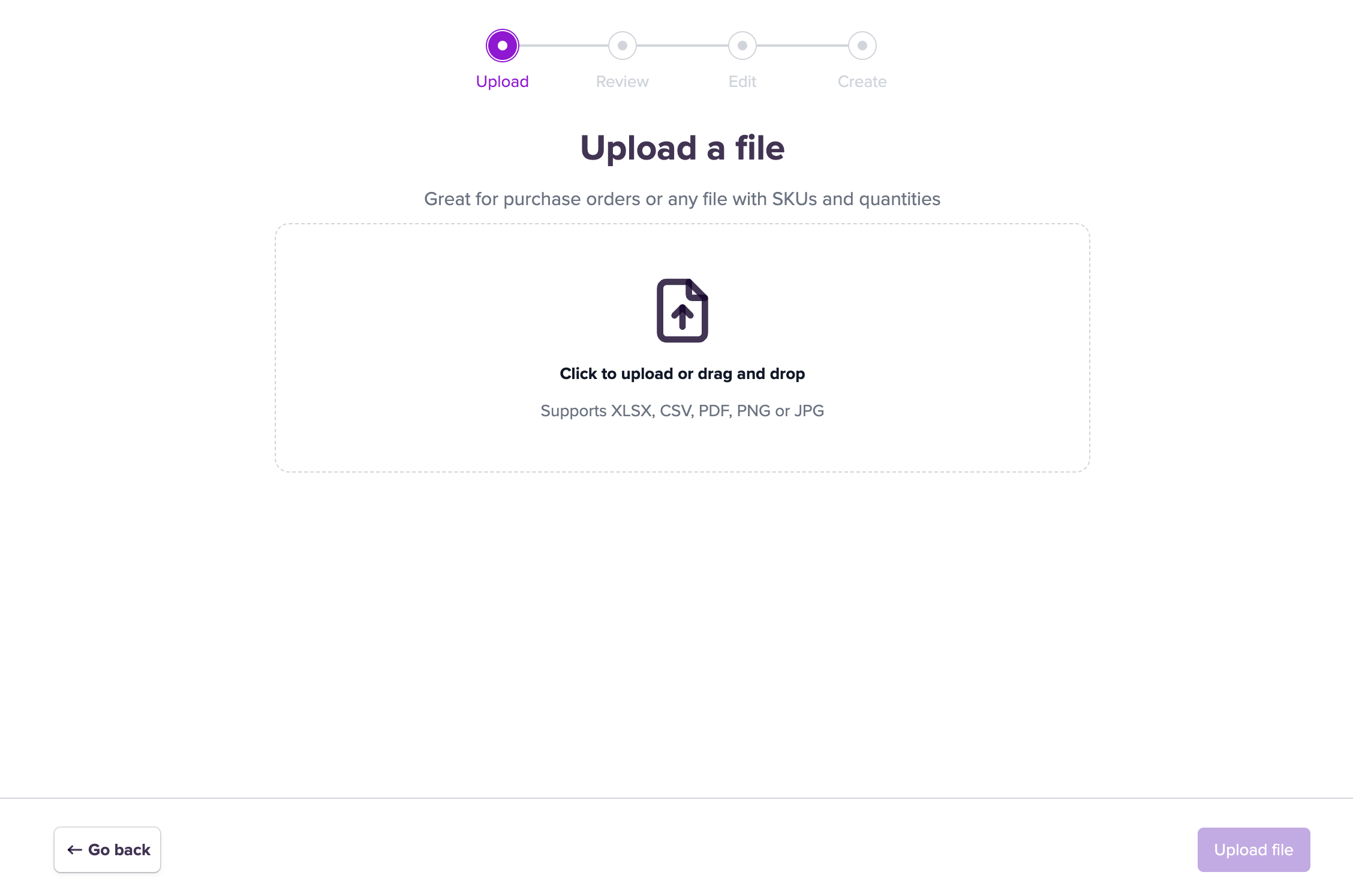
- Click Upload a file or drag and drop your document.
- Wait a few seconds while our AI reads your file and extracts the key information.
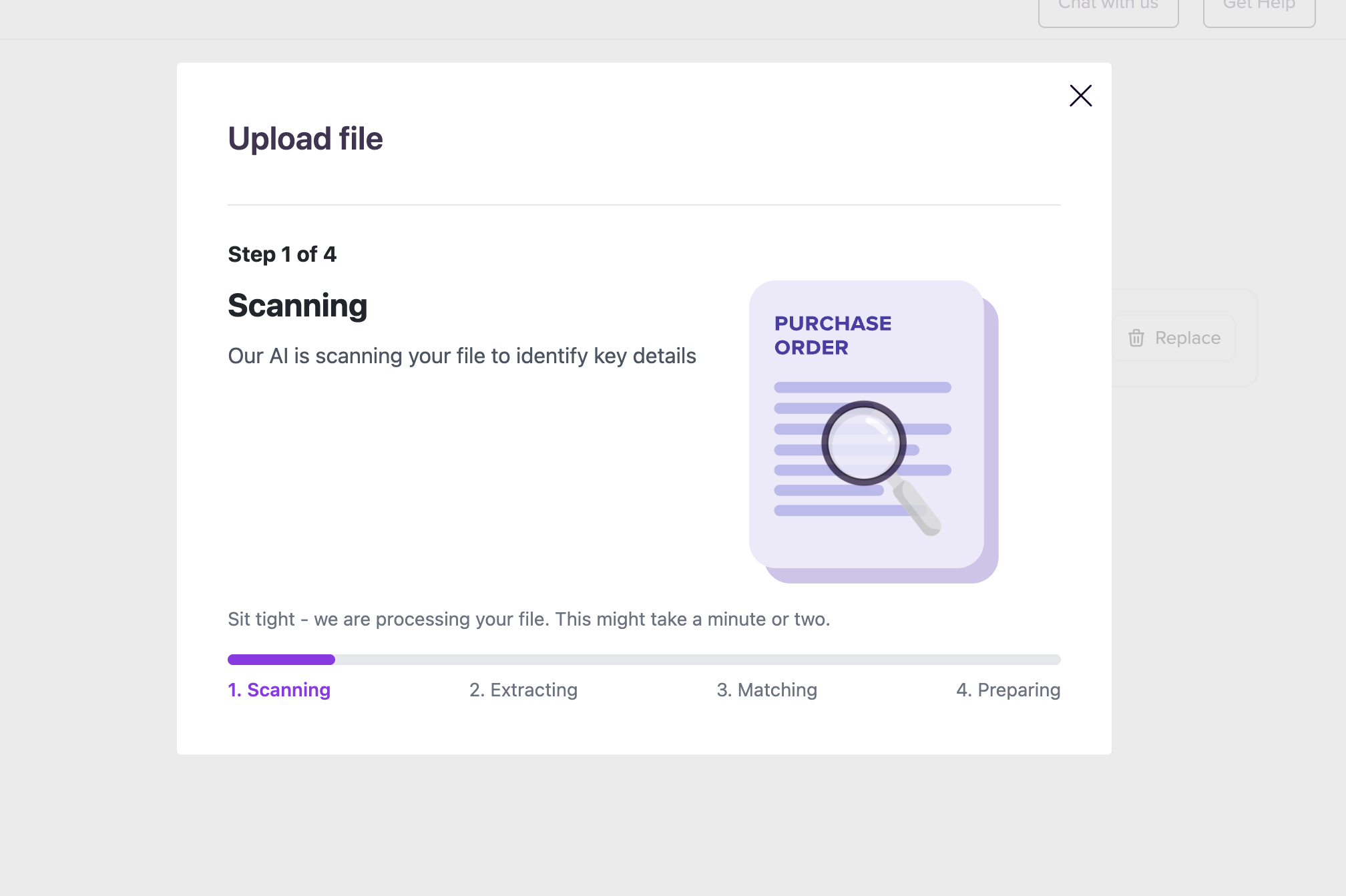
💡 Tip: If the upload processing is taking a long time, try splitting your upload into smaller documents for faster outputs. It usually takes about 30 seconds to process 30 - 50 SKUs.
3. Review your matches
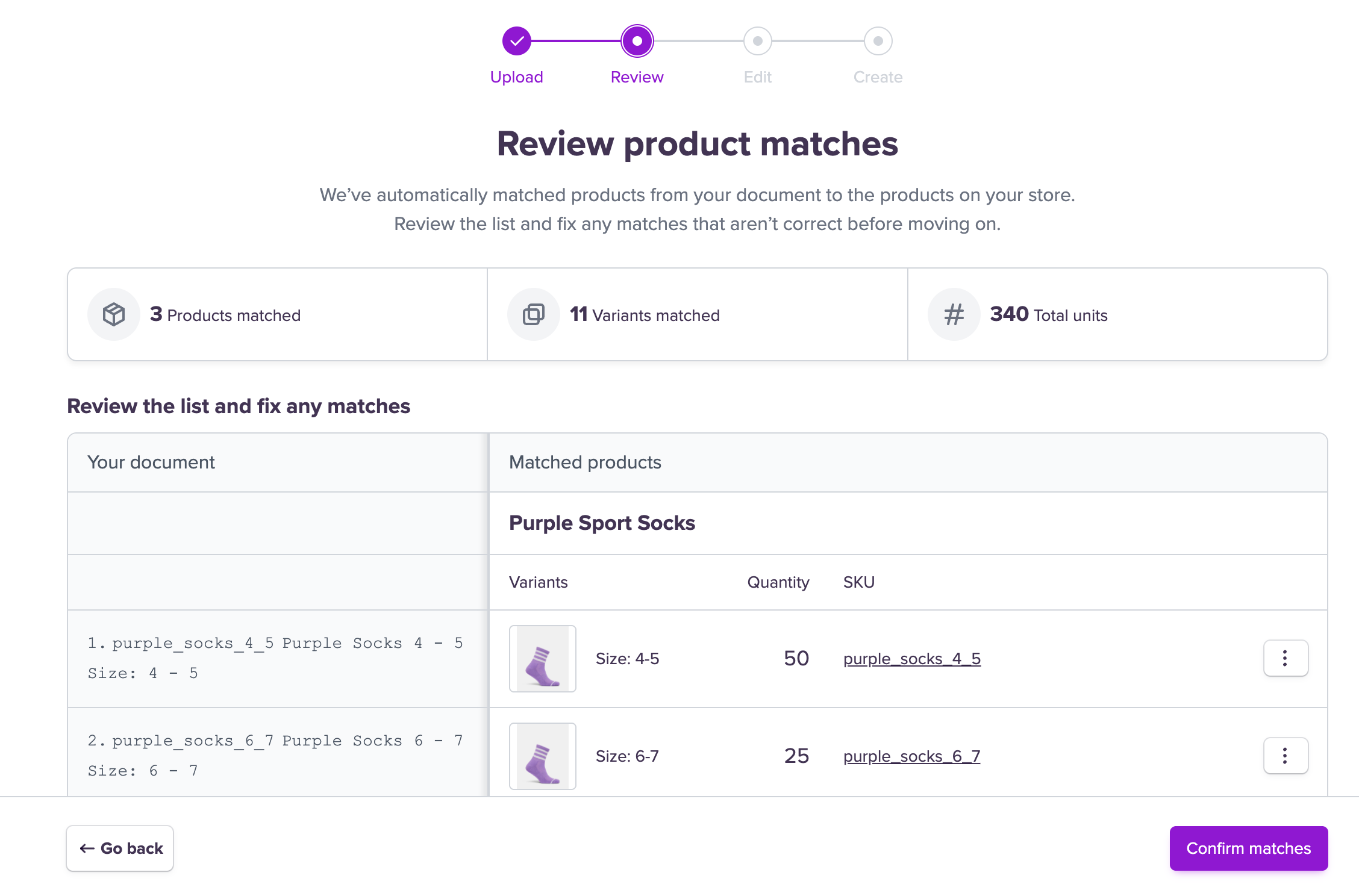
Our AI will have automatically matched the products in your file to the products in your store.
You’ll then be able to:
- See a summary of the products, variants and units extracted
- Fix any variants our AI model couldn’t match
- Correct any other matches before continuing
You’ll be able to finalise your quantities and Waitlist details at the next step.
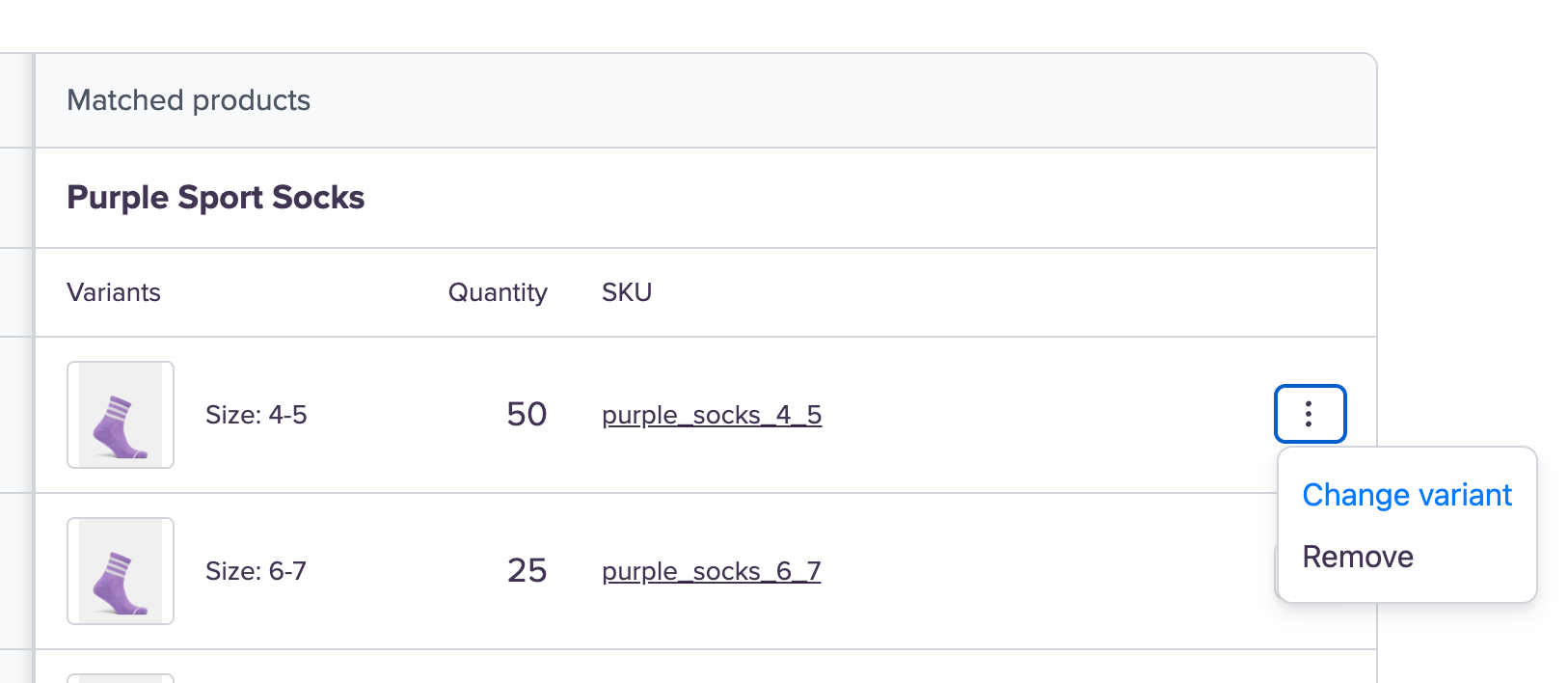
💡 Tip: For any unmatched or mismatched products, try copying the SKU number or product name from the “Your document” column and entering it within the “Change variant” search.
4. Edit and confirm Waitlist details
Next, you’ll edit Waitlist details — like shipping dates, labels, and quantities — before creating them. We'll have pulled through some of this information automatically.
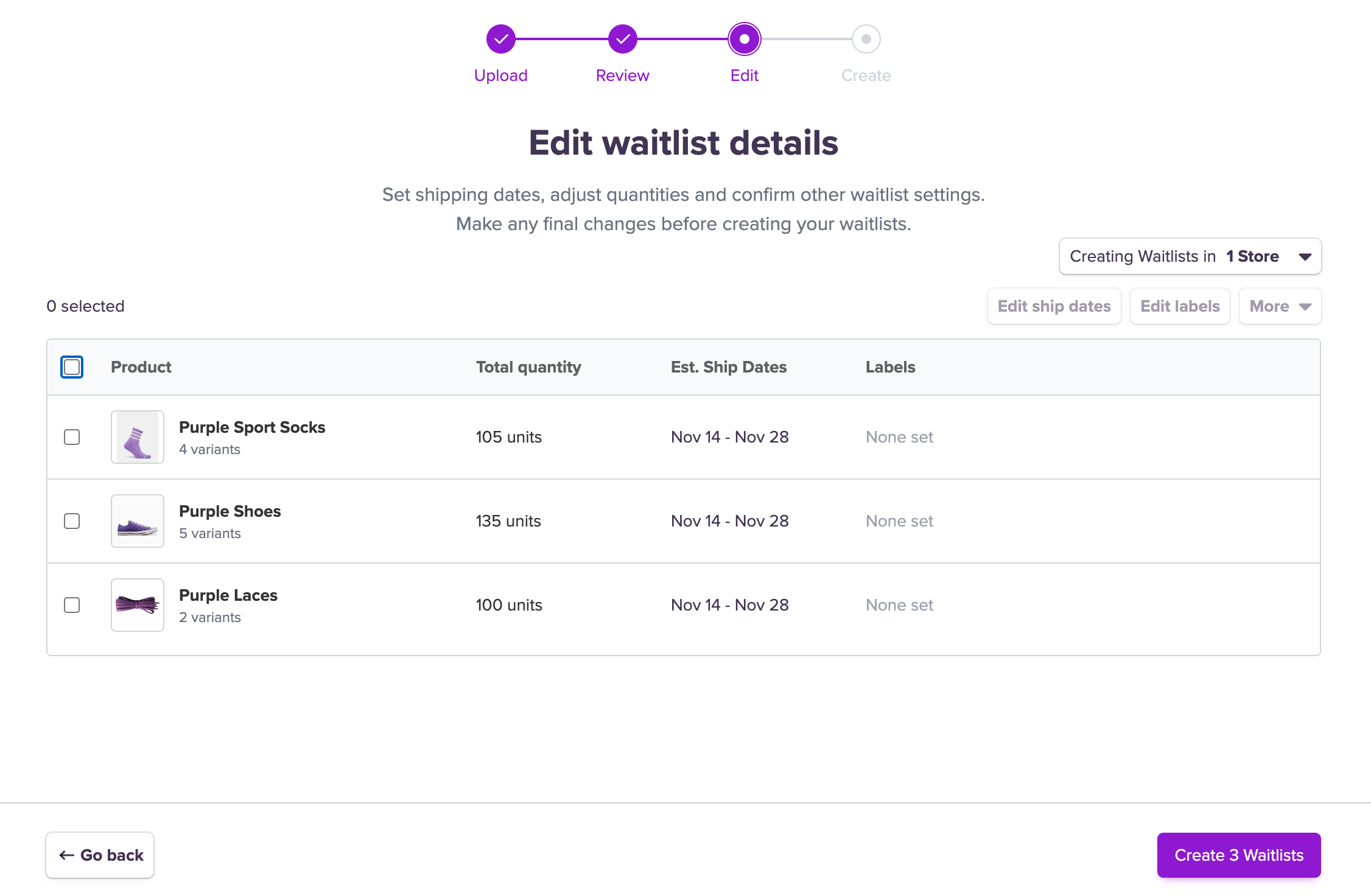
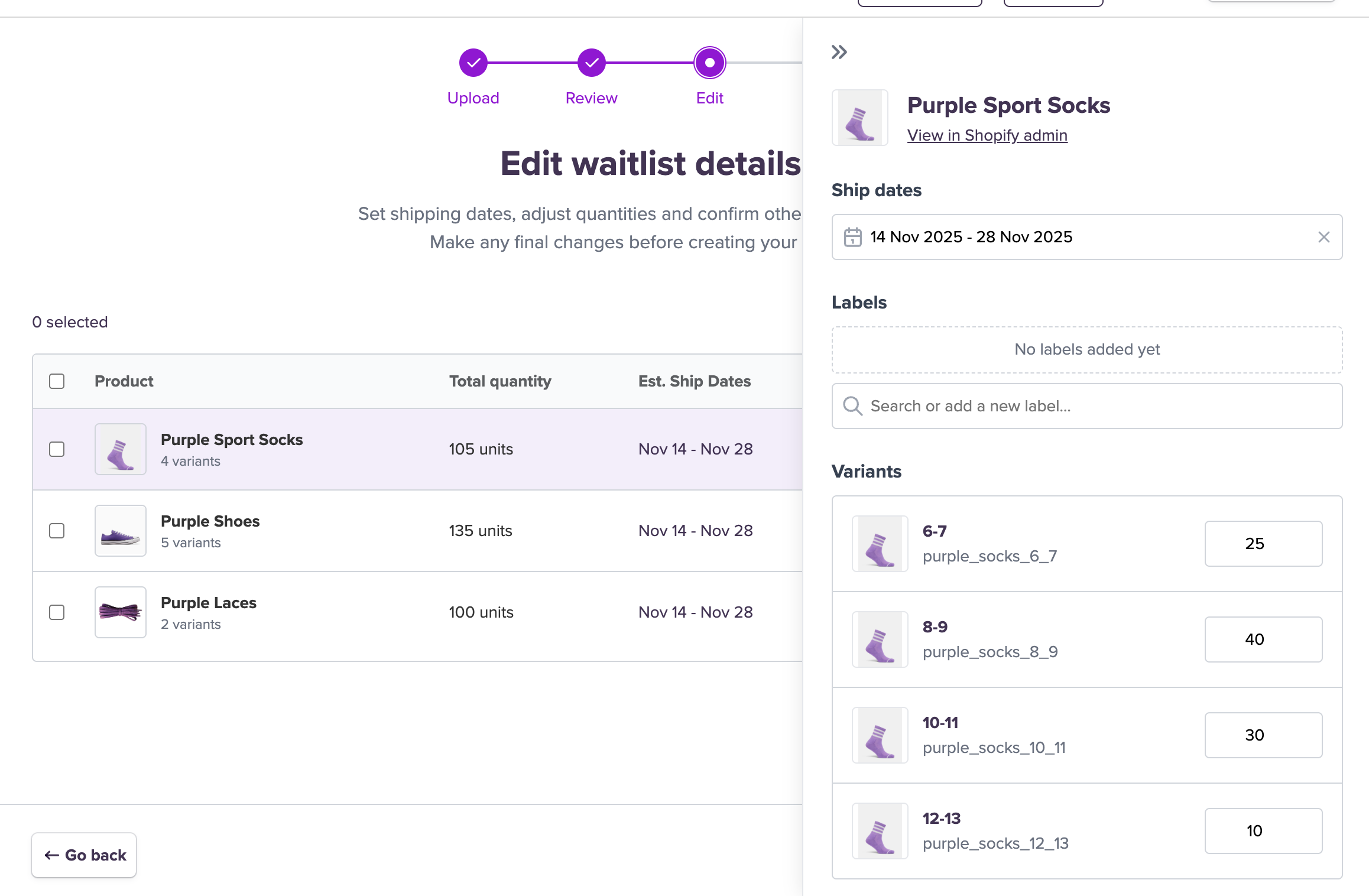
You can click into a row to open up the Waitlist details and adjust any of the settings manually.
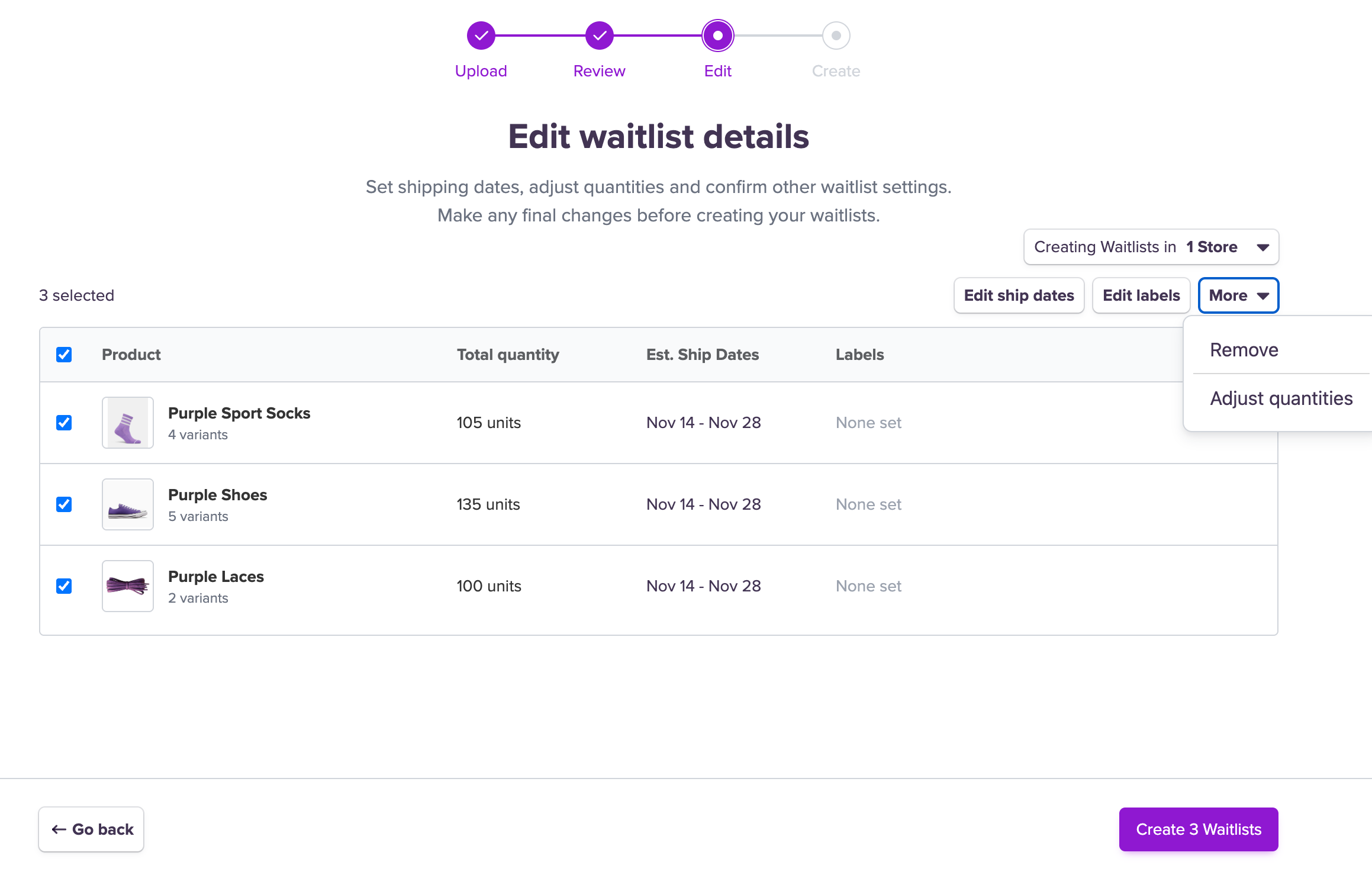
You can also edit the details for multiple Waitlists at once by selecting the relevant Products from the list and using the bulk actions.
💡 Tip: Try adding your purchase order or shipment number as a label - it makes it easier to track and update your Waitlists once they’re live.
💡 Tip: The "Adjust quantities" feature is useful if you’ve uploaded a purchase order and only want to put a % of your incoming inventory on pre-order.
💡 Tip: If you want to share the Waitlists and inventory across multiple storefronts, just select the relevant stores from the “Creating Waitlists in…” list.
5. Create your waitlists
When everything looks good, click Create Waitlists.
We’ll confirm once your waitlists have been successfully created.
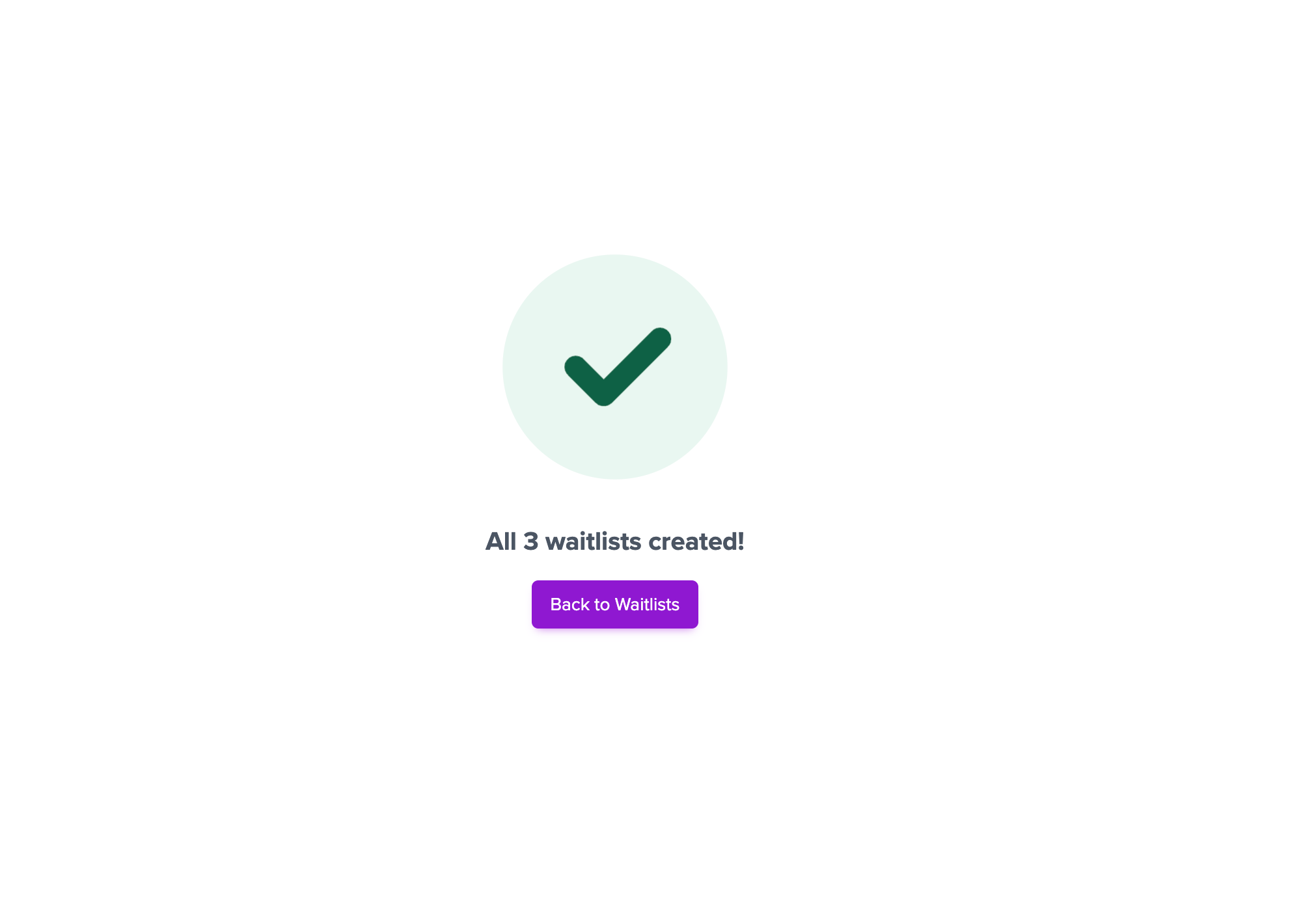
✅ That’s it
You’ve bulk uploaded your Waitlists!
If you’re not sure where to start, try using our Excel template below, or check out the sample purchase order as inspiration for the types of document you can upload.
If you have trouble with your upload or questions on the best file formats, reach out to our support team, who can guide you through it - we’re happy to help!