
Purchase Order UploadUpdated 5 months ago
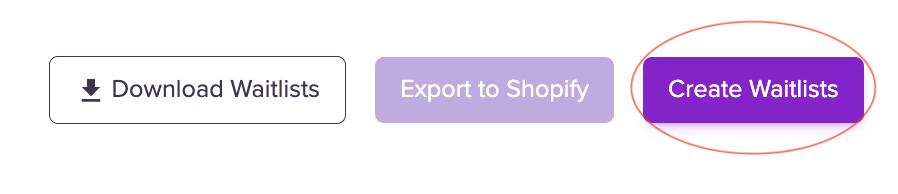
Now, you can create multiple waitlists using a Purchase Order by hitting Create Waitlist in the Waitlists tab of the dashboard.
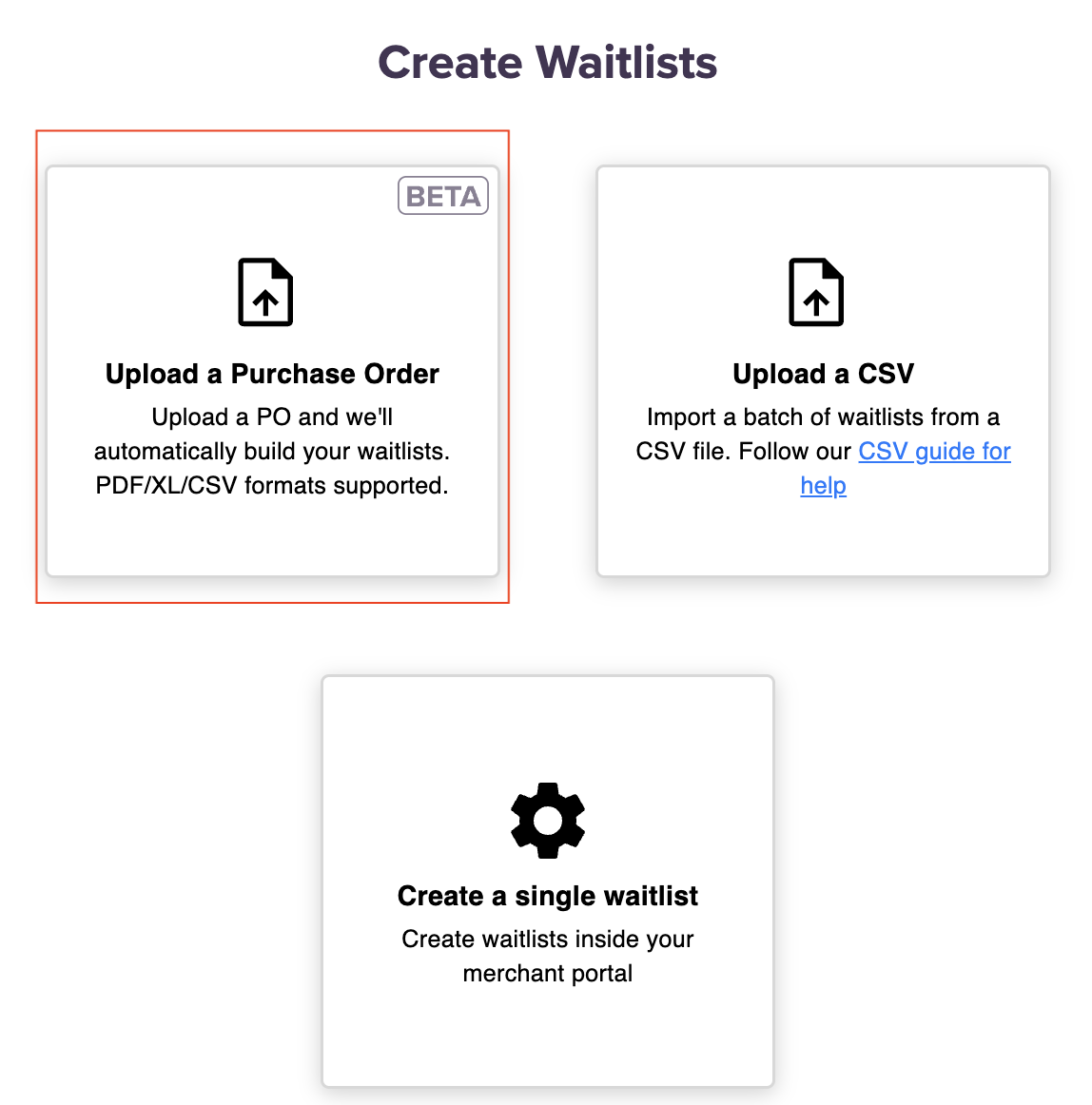
Simply upload your PO in PDF, XL or CSV format, and our helpful AI model will automatically scan the document, extract and match the SKUs from within it against the products in your store, and prepare a list of draft waitlists for you to review.
Required Fields
- product_handle
- sku
- units_on_preorder
- earliest_ship_date
- latest_ship_date
I've uploaded my PO. What now?
Once your PO has been uploaded, a list of draft waitlists will be available for your review. Here, you will see a list of products and SKUs. You can remove selected SKUs and preview waitlists. You will also be able to amend your shipping dates and quantities by line item or by using the bulk edit feature.

Once you've made any changes, click the Create Waitlists button.
Additional Notes
- If you find a product that can't be found: You will be notified, and you can either choose to remove the product and create the waitlist separately, or you can manually match the SKU to the products in your store using the search function.
- Your PO is not uploading: Please reach out to our Support team with a copy of the PO you are using and, if possible, the URL of the page. The team will be able to assist you in troubleshooting and resolving any issues.